How to Share Immersive, Spatial and Binaural Mixes for Client Review (and Get Feedback You Can Act On)
Spatial9 Research Team · · Updated · 29 min read
Key takeaways
- Immersive audio sharing and spatial audio sharing work best as a private review room: one link that plays the immersive mix on speakers and binaurally on any headphones, with timed and spatial comments, instead of sending large files back and forth.
- A file transfer delivers a file; a review room delivers the listening experience and brings precise feedback back.
- Studio Rooms plays ADM BWF, Eclipsa Audio (IAMF), 7.1.4 multichannel, ambisonics, binaural, stereo and video in the right player, rendered for headphones.
- Notes can be pinned to an exact millisecond, a selected section, a position in 3D space, or recorded as voice notes that are transcribed to text.
- Version comparison switches between mixes in sync, so clients hear exactly what changed.
- Share links carry a password, expiry, watermark, download control, instant revoke and per-link activity, and guests need no account.
- Clients approve or request changes on the exact version they heard, and alerts arrive instantly, as a daily digest or not at all.
- Team roles, client upload links and paid downloads through Stripe keep the whole project, and the payment, in one room.
- Studio Rooms installs like an app, saves files for offline listening and turns any share link into an embeddable player.
- An AI to-do list merges every open note into one prioritised checklist, and a change map shows which passages changed between versions.
- The delivery check gives a ready, close or not-ready verdict for Atmos stores, Spotify, YouTube, Netflix and broadcast, with a downloadable report.
- Hear it on earbuds, a laptop, a phone or a car, look around an immersive mix by turning your phone, and listen together live with everyone in sync.
- Timed notes export as markers for Pro Tools, Logic, Cubase, Studio One, Ableton and Reaper, and every link can carry your studio branding.
- Headphone correction balances nearly 3,000 measured headphones toward the Harman reference, and an AI finds curves for models that are not listed.
- AI assistants over MCP and agents over Agent2Agent can deliver versions, share links, email invites, read notes, build fix lists and report approvals, with Off, View or Manage access per connection and your confirmation before anything is sent or charged.
- Clients with a share link can connect their own AI assistant to it with no account, then listen, leave notes and approve by asking, with every post confirmed first and signed "(via AI assistant)".
Every engineer has had this email.
"Loved it! Just one thing: around the second chorus, the thing on the left feels a bit much? Also could the vocal be more... in front? But not louder. You know what I mean."
You do not know what they mean. You open the session, scrub to somewhere near the second chorus, guess which "thing on the left" they heard on their laptop speakers, and send version four. They reply from their phone: "Hmm, closer. Did you change the reverb?"
Now multiply that by twelve speakers, a height layer, moving objects and a client who is listening to a binaural fold-down on AirPods while you mixed on a calibrated 7.1.4 system. Immersive audio did not just add channels to the mix. It added dimensions to the misunderstanding.
Studio Rooms exists to end that email. Here is why sharing immersive mixes is harder than it looks, what good spatial feedback actually requires, and how to set up a review process that gets you to approval in fewer rounds.
Why sharing an immersive mix is harder than sharing a stereo one
With a stereo master, sharing is solved. Bounce a WAV or an MP3, drop it into any link, and everybody hears roughly the same thing.
Immersive and spatial mixes break that in four ways.
- The file itself is not playable by most people. An ADM BWF master is a multichannel Broadcast Wave file with beds, objects and position metadata. Double-click it on a normal laptop and you get silence, an error, or the first two of 128 tracks. An Eclipsa Audio (IAMF) file needs a decoder most media players do not have yet.
- Your client does not have your room. You mixed on 7.1.4 or 9.1.6 speakers. Your client, your artist and the label A&R almost certainly listen on headphones. What they hear depends entirely on the binaural rendering, and if they hear a different render than the one you checked, their notes describe a mix you never made.
- Feedback gains a direction. In stereo, "too loud" is enough. In spatial audio, the problem might be where something is: too high, too far back, too wide, moving too fast. Words are a terrible tool for describing positions in a sphere.
- There are more versions, and they differ in subtler ways. Spatial revisions are often about placement and movement rather than level. Telling version three from version four by ear, a day apart, is nearly impossible.
That is why the usual workflow, a transfer link plus an email thread, falls apart on immersive projects. A transfer delivers a file. It does not deliver the listening experience, and it gives your client no way to point at what they hear.
What a good immersive review actually needs
If you strip the problem down, a client review of a spatial mix needs five things.
| Need | Why it matters | What fails without it |
|---|---|---|
| The right player for the format | ADM, IAMF, multichannel and ambisonics each need different decoding and rendering | The client hears silence, a fold-down or the wrong render |
| A known binaural render | Most reviewers listen on headphones | Notes describe a mix you never heard |
| Notes anchored in time and space | Spatial problems have a when and a where | "Around the chorus, on the left-ish" |
| Versions you can switch between instantly | Spatial changes are subtle | Nobody can tell whether the fix landed |
| Access control | Unreleased music leaks | A forwarded link becomes a leak |
Studio Rooms is built around exactly these five.
Format-aware playback: the client hears what you hear
When you upload a file to a room, Studio Rooms reads it before playing it and chooses the right player automatically. These are the same players behind the free Try your current files tool, which handles more than 50 audio and video formats.
- ADM BWF and Atmos masters open with their beds and objects rendered into a virtual 7.1.4 room on headphones, so a client can judge placement and movement without a speaker system.
- Eclipsa Audio and IAMF files, as standalone
.iamfor inside an MP4, play with an instant stereo versus binaural A/B, so the client hears both deliverables and understands the difference. Read more in our IAMF web player guide. - Multichannel WAV in 5.1, 7.1, 7.1.4 or 9.1.6 shows its speaker layout and a 3D preview.
- Ambisonics (AmbiX) are rendered binaurally from the sound field.
- Binaural bounces and stereo play with a waveform, a spectrum and loudness readings.
- Video, including 360 video, plays with its soundtrack so notes land on the picture timeline.
A small format card at the top of each file tells your guest exactly what they are listening to. That single line ("ADM BWF, 7.1.4 bed plus 22 objects, rendered binaurally") prevents a surprising number of wasted review rounds.
Nothing is re-encoded for the review. The player reads the original file you uploaded.
A next step for every file
Because the room knows what each file is, it also knows what usually comes next. Under the format card, your team sees one suggestion for that file. An Atmos ADM master gets a free conversion to Eclipsa Audio for YouTube. A Dolby or DTS encode gets a reminder to export the ADM master behind it. A stereo or mono file gets the Spatializer for Music, which turns it into an immersive mix, and a video gets sound that follows the picture.
When a client approves a version, the suggestion turns green and switches to delivery: "Approved. Put it on YouTube in Eclipsa Audio, free." Clients on review links never see these prompts, and you can hide one for any file with a single click.
Feedback you can point at
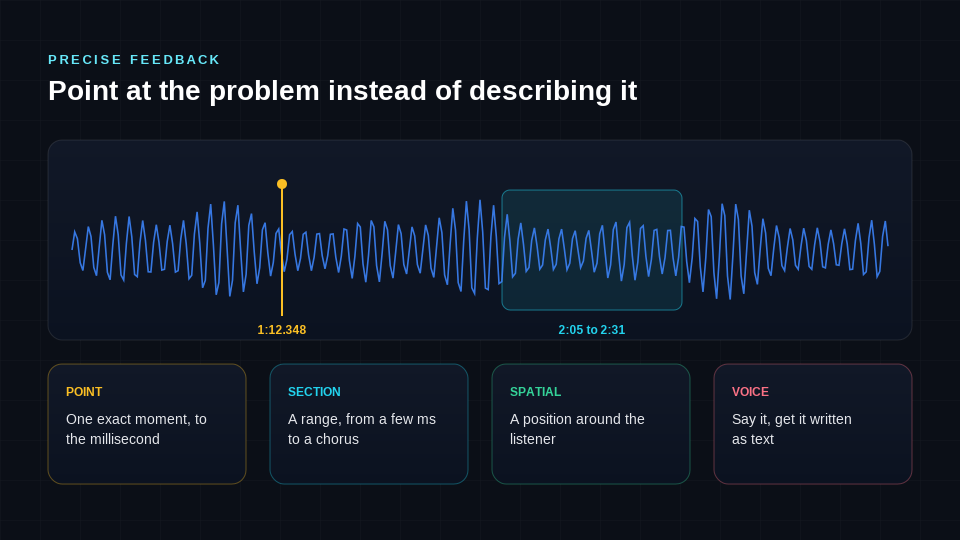
The heart of a review is the note. Studio Rooms gives every note an anchor, so a comment is never vague about when or where.
Point notes: one exact moment
Switch the waveform to Point and click. The note is pinned to that instant, shown to the millisecond. Zoom in far enough and the waveform stops being an overview and becomes the actual sample curve read from the original file, with every individual sample visible. That is the level of precision you need for a click, a bad edit, a breath that should go or a single snare hit that is too loud.
Section notes: a range, from milliseconds to minutes
Switch to Section and drag. A section can be as short as a few milliseconds, a single transient, or as long as a whole bridge. "From 2:05 to 2:31 the pads feel narrow" is a note you can act on immediately.
Spatial notes: a position in 3D
Pick a point on the sphere around the listener and attach it to the note. "The guitar should sit here" stops being a sentence and becomes a coordinate: azimuth, elevation and distance. In VR on a supported headset, spatial notes appear as markers at the positions they describe, around you, inside the mix.
Voice notes: say it, and get it in writing
Many artists and producers are far better at saying what they hear than typing it. Hum the melody that is buried. Say "this needs to feel like it is coming from behind me." Laugh at the drop.
Press the microphone in the note box and talk for up to three minutes. The player pauses while you record so your voice does not mix with the music. When you stop, Studio Rooms transcribes the voice note to text and places it in the note, where you can fix a word before sending. The recording stays attached, so the engineer hears the tone and emphasis, and also gets a searchable, skimmable written note.
Combine anchors freely. A voice note pinned to a section, with a spatial position, is about as unambiguous as feedback can be.
Resolving notes
Engineers mark a note done once it is addressed. Done notes move to their own tab, so every round starts with a clean list of what is still open, and nothing slips through an email thread.
Comparing versions: did the fix land?
Spatial changes are subtle. Moving a backing vocal 20 degrees higher is obvious when you flip between versions at the same moment, and invisible when you listen to them a day apart.
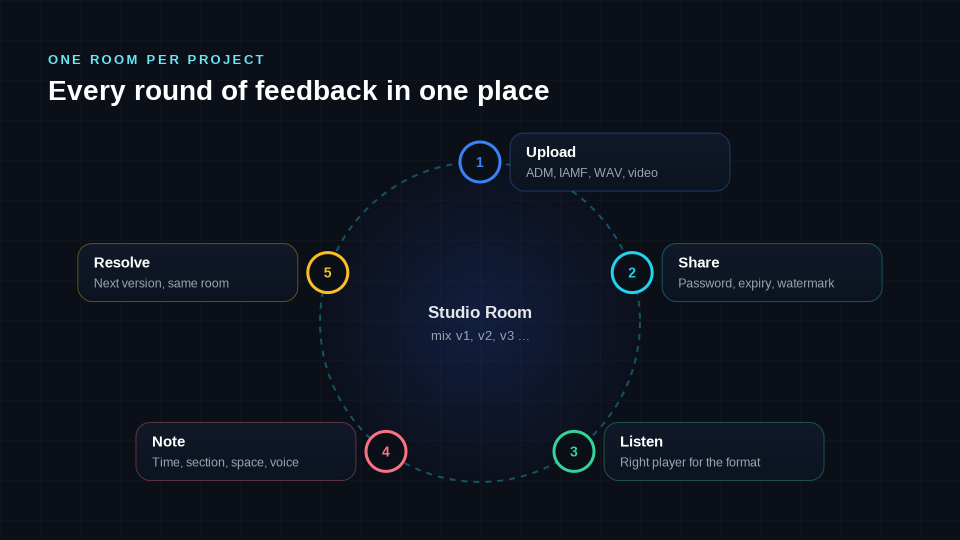
In a Studio Room each new upload can be marked as a new version of an earlier file. The room keeps the chain in order (v1, v2, v3), and version comparison plays two versions in sync and lets you switch between them instantly at the same point in the song. Your client hears exactly what changed. You get approval instead of "hmm, closer."
For the owner, a built-in quality check measures loudness, true peak, clipping, dynamics and phase against the platform you deliver to, privately in the browser, before the mix goes anywhere.
Approvals and alerts: a clear yes, and you hear about it
A pile of notes is not a decision. When a guest has finished listening, they can mark the exact version they heard as Approved or Needs changes. Asking for changes requires a short note, so "not quite" always comes with a reason. The latest decision sits next to each file, the full history stays on record, and a new version starts clean. Guests who open an older version see a banner pointing them to the newest one, so nobody approves a mix you already replaced.
You do not have to keep checking either. The bell on your rooms page collects everything that happened while you were away: links opened, first listens, downloads, notes, approvals and change requests. For each room you choose how you hear about it by email: instant (several notes grouped into one message a couple of minutes after activity settles), a daily digest, or off.
Sharing securely: unreleased music deserves better than a public link
Pre-release audio leaks. Sometimes through bad actors, far more often through a link forwarded once too many times. Each Studio Rooms share link carries its own controls.
- Password, with automatic locking after repeated wrong attempts
- Expiry date, after which the link stops working
- Stream only or download, decided per link
- Listen only or comment, decided per link
- Watermark with the recipient's name over the player, so a screen recording can be traced to its link
- Revoke at any moment, effective immediately
- Latest versions only, or hand-picked files: a link can show every file, only the newest version of each track (new uploads appear automatically), or just the files you choose
- Send by email, WhatsApp or text message straight from the share panel, with your contacts remembered for next time
- Charge to download: guests listen and comment for free, and downloads unlock after they pay
- Activity: when the link was opened, which files were played or downloaded, and when notes arrived
Create one link per person, label it, and you always know who heard what. Files stream through short-lived signed addresses, so a copied file address stops working within hours.
Working as a team
Big projects are never one engineer and one client. Open Team in any room and invite collaborators by email with a role: Listeners play and comment, Editors upload versions and manage share links, and Admins also manage people and settings. Each invite is personal, works only for the account with that email address and expires after 14 days. Someone who lands on a room they are not part of can ask to join, and you decide which role they get. Rooms shared with you appear in their own section with your role on each card.
Collecting files from clients
Feedback is only half of the conversation. The other half is stems, references and revised vocals arriving through yet another transfer link. In Studio Rooms you choose Collect files, write what you need ("24-bit WAV stems, all starting at bar 1"), set how long the link stays open and how many files it accepts, and send it. Your client drops in audio, video, images or PDFs of up to 2 GB each, with no account. Every file lands in the room tagged with who sent it, and you get an alert.
Getting paid for downloads
If you sell mixes, stems, beats or masters, a share link can charge for the download. Connect your bank account once under Payouts with a short Stripe setup, then switch on Charge to download and set a price in USD, EUR, GBP, CAD, AUD or BRL. Guests still listen and leave notes for free, pay by card when they are ready, and the files unlock immediately. The money goes straight to the room owner's Stripe account, every sale appears under Payouts, and a refund in Stripe removes download access again.
Listen anywhere: app, offline and embedded
Mix reviews happen in cars, on trains and on planes. Studio Rooms can be installed like an app on desktop, Android, iPhone and iPad, so it opens in its own window next to your other tools. Press Save offline on any file and it stays on that device, ready to play with no signal, collected on one Offline page grouped by room. Guests can do the same from a review link when downloads are allowed or paid for.
And when a mix is ready to show off, every share link can become an embedded player for your website, portfolio or link-in-bio page. Copy the code from the share panel, choose a compact player or one with a tracklist, and paste it in. The player follows the link's rules: plays count toward its activity, password links send visitors to the full review, and revoking the link switches the player off everywhere at once.
From notes to delivery: the tools that close the loop
Collecting precise feedback is half the job. The other half is turning it into a better mix, proving the fix landed and delivering a master that every store will accept. Studio Rooms now covers that whole stretch.
An AI to-do list built from every note
Open the To-do tab and every open note on a version, and on the versions before it, becomes one checklist. Repeated requests ("the vocal is too quiet" from three people) merge into a single task, praise without a request is skipped, and tasks are sorted by priority with a time you can click to listen. Voice notes count too, through their transcripts. Ticking a task resolves the notes it came from, and Rebuild refreshes the list after a new round without losing what you already ticked. The list is written by AI, so give it a quick read before sending it on.
See exactly what changed between versions
In Compare, press Find what changed. Spatial9 listens to both versions in your browser, lines them up even if the new one starts a little earlier or later, and highlights the passages that got louder, quieter, brighter, darker, wider, narrower, or are new. Click a highlight to jump straight there. Open notes from the older version are carried across at the matching time, and notes that sit where the mix changed are marked May be fixed, so you check those first. The comparison runs on your own device; nothing is uploaded.
Notes as markers in your editing software
Press Markers above the player to download every timed note for your session: MIDI markers for Pro Tools, Logic, Cubase, Studio One and Ableton, regions for Reaper, or a spreadsheet for Excel, Numbers and Google Sheets. Each marker reads "Author: note", plus the direction for notes pinned in 3D. Feedback lands on your timeline instead of in a separate window.
A delivery check for every store
Once a loudness check has run, the Delivery check under Quality tells you whether a file is ready for Apple Music Dolby Atmos, Amazon and Tidal Atmos, Spotify, Apple Music stereo, YouTube, Netflix and EBU R128 broadcast. Each store gets a clear verdict (ready, close, or not ready) with the reasons: loudness, true peak, sample rate, bit depth and, for Atmos stores, whether the file is a proper ADM master. Download report saves a one-page summary you can send to a label or distributor, and guests on your link can see the check too.
Hear it like the client
Most listeners will never hear your mix on studio monitors. Under the player, Hear it on plays the mix the way it will sound on Earbuds, Laptop speakers, a Phone speaker (mono, no low end) or in a Car, with a boomy cabin and some road noise. These are quick, honest approximations to catch problems early, not measurements of a particular product, and the file itself never changes.
Tuned for your headphones
Every pair of headphones colours the sound. Some add a bass hump, others make vocals sharp, and a client on consumer earbuds can end up asking you to fix something that only exists in their headphones. Press Tune for my headphones under the player, search for the model and pick it. Studio Rooms then balances those headphones toward the Harman reference curve that most studios trust, so the client hears the mix, not their headphones.
The list covers nearly 3,000 headphones, earbuds and in-ear monitors. Each one is measured by a respected lab (oratory1990, Rtings or crinacle) and published through the open-source AutoEq project. If a model is missing, the listener just keeps typing and the AI starts looking on its own. It works out a correction from published measurements, labels it AI estimate, and says so honestly when it is not sure a model exists. Once one person has found a model, everyone gets it instantly next time.
A small curve shows exactly what is being corrected, and Turn off switches it back. The choice is remembered on that device, works for guests on review links, and combines with Hear it on and binaural playback. The file itself never changes.
Look around inside the mix on your phone
When an immersive file plays as a full binaural render on a phone or tablet, press Turn to look around. Turning the phone turns your head in the mix: the front stays where it was, and you can hear what sits behind and beside you. One tap faces the front again. It is the quickest way to let a client feel the difference between a wide stereo mix and a real immersive one.
Listen together, live
Press Listen together to host a live session. Everyone else who opens the room, team members and guests on a share link alike, sees Join and then follows you: play, pause, jump and switch files, and they do too, in sync. Pair it with your usual call app and you have a remote playback session without screen sharing and its compressed audio. Sessions only reach people who can already open the room, and close on their own after three hours.
Your studio's branding on every link
Add your studio name, logo, accent colour and website once, under Branding on your rooms page. Clients then see your studio on review links, client upload links and the embedded player, and invite emails go out under your studio name in your colour. The logo stays private: guests only ever get a short-lived link to it.
Let your AI assistant run the review loop (MCP and Agent2Agent)
Most of a review round is admin: export the right version, upload it, make a link, write the email, read every note, turn the notes into a list, chase the approval. Studio Rooms now lets an AI do that admin for you, in plain words, while you stay in the chair.
Connect ChatGPT, Claude, Gemini or another assistant on the Connect page through the Spatial9 MCP server, or plug your own agent into the Spatial9 Agent2Agent (A2A) service with the studio_rooms skill. Then ask:
- "Put the headphone version of today's render in the Neon Nights room as v3."
- "Make a password-protected link for the latest version that expires Friday, and email it to the label."
- "What did the client say about v2? Turn it into a fix list sorted by priority."
- "Reply to the note at 1:12 that the vocal is now wider, and resolve it."
- "Which of my mixes are approved, and which still need changes?"
Why it matters
- Render to review in one sentence. A finished Spatial9 render (binaural, Eclipsa Audio in MP4, IAMF and more) goes straight into the room as the next version. No downloading and re-uploading.
- Feedback becomes work. The assistant reads every timed, section, spatial and transcribed voice note, builds the same prioritized fix list you see in the To-do tab, and ticks fixes off as you finish them.
- Approvals you can ask about. "Is anything waiting on the client?" gets a direct answer across all your rooms.
- Pipelines for studios and agencies. An agent can run
spatial_audio, wait for the render, add it to the client's room, share it and report back when the version is approved. That makes review a step in an automated delivery chain, not a manual detour.
Not just the studio: your team, the artist and the label
The assistant works for whoever is signed in, inside the rooms they belong to and within their role. Invite the artist, the label's A&R or a co-producer to a room with their own free Spatial9 account and they can connect their own assistant too:
- Listeners can ask "Summarize the client's notes on v4", "What is still on the fix list?" or "Is the mix approved yet?"
- Editors and admins can also deliver versions, share links, email invites, reply to notes, and build and tick the fix list, the same as on the website. Only the room owner can charge for downloads, because the money goes to them.
- Clients who only have a share link can review in the browser as usual, or connect their own assistant to that one link at
https://spatial9.ai/mcp/review, with no account. The Review with your AI assistant button on the review page shows them how. They can ask "What changed in the latest version?", "Leave a note at 1:12 that the vocal feels too far back" or "Approve v3". The assistant only sees what the link shows, reads every note or approval back before posting it, and signs it "(via AI assistant)". If you revoke the link, their assistant loses access at once. Their notes and approvals reach your assistant straight away.
You stay in control
- Access per connection. Every key and connected app has a Studio Rooms access switch: Off, View (read rooms, notes, links, fix lists and approvals) or Manage. It works on every plan, including free.
- Nothing goes out without your yes. Emailing a client, publishing or switching off a link, and charging for downloads all need your confirmation first. Invites only go to addresses you gave the assistant.
- Clear labels. Files and replies an assistant adds are labelled with its name, for example "Claude (AI assistant)", so clients and teammates always know who wrote what.
- Same rules as the website. Plan limits, link limits, owner-only pricing and the payout check apply exactly as they do when you click the buttons yourself.
Developers will find every tool in the MCP server guide and the skill format in the A2A guide.
File transfer, shared drive or review room?
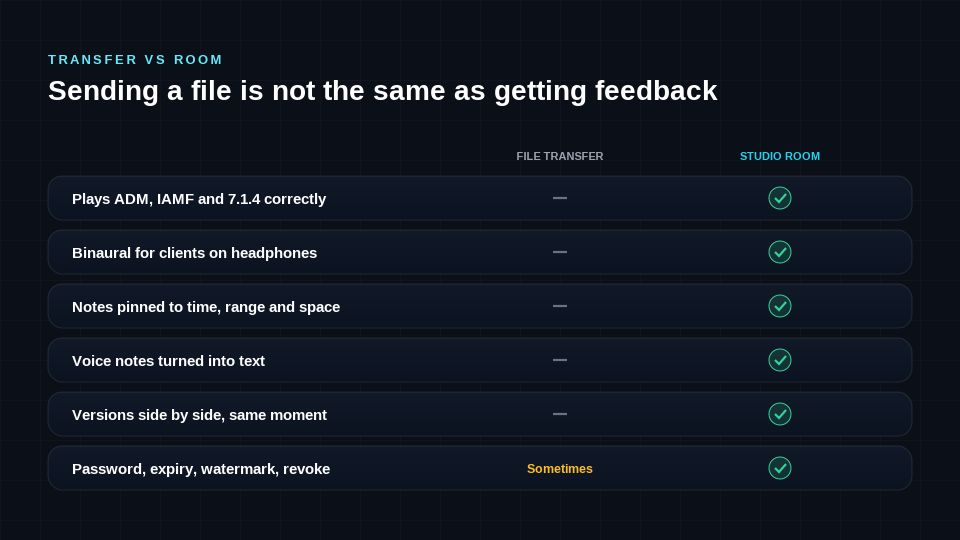
| File transfer (WeTransfer, Dropbox, Drive) | Generic audio review tools | Studio Rooms | |
|---|---|---|---|
| Plays ADM BWF and Atmos masters | No | Usually no | Yes, rendered to binaural |
| Plays Eclipsa Audio / IAMF | No | No | Yes, with stereo vs binaural A/B |
| Multichannel and ambisonics | Download only | Often downmixed or unsupported | Yes, with layout and 3D preview |
| Timestamped comments | No | Yes | Yes, to the millisecond |
| Section (range) comments | No | Sometimes | Yes |
| Spatial position on a note | No | No | Yes |
| Voice notes with automatic text | No | Rarely | Yes |
| Sample-level waveform zoom | No | Rarely | Yes |
| Version A/B at the same moment | No | Often | Yes |
| Password, expiry, watermark, revoke | Partly | Often | Yes, per link |
| Guest account needed | No | Varies | No |
| Client approval per version | No | Often | Yes, with a required note for changes |
| Email alerts and daily digests | Partly | Often | Yes, per room |
| Team roles and invites | Folder sharing | Often | Listener, Editor, Admin |
| Client upload links | Yes, but separate | Sometimes | Yes, into the same room |
| Paid downloads | No | Rarely | Yes, paid out to you through Stripe |
| Installable app and offline listening | Desktop app | Sometimes | Yes, in the browser |
| Embeddable player | No | Often | Yes, follows the link's rules |
| AI to-do list built from every note | No | No | Yes, prioritized, ticking resolves the notes |
| Map of what changed between versions | No | No | Yes, with "May be fixed" on older notes |
| Notes exported as DAW markers | No | Sometimes | Pro Tools, Logic, Cubase, Studio One, Ableton, Reaper |
| Delivery check against store specs | No | No | Atmos stores, Spotify, YouTube, Netflix, broadcast |
| Hear it on earbuds, laptop, phone or car | No | No | Yes |
| Headphone correction | No | No | Nearly 3,000 models, AI estimate for the rest |
| Look around the mix by turning your phone | No | No | Yes |
| Listen together, live and in sync | No | Rarely | Yes |
| Your studio branding on links and emails | Partly | Often | Yes |
| Review in VR | No | No | Yes, with spatial notes in place |
| Run by your AI assistant (MCP) | No | No for audio review | Yes, 15 room tools |
| Clients review through their own AI assistant | No | No | Yes, from the share link, no account |
| Agent-to-agent automation (A2A) | No | No | Yes, studio_rooms skill |
| Render straight into the review room | No | No | Yes, from any Spatial9 render |
| Per-connection AI access and confirm-before-send | No | No | Off, View or Manage, plus your yes |
Tools such as Filepass, Samply, Pibox and similar services are excellent for stereo music review, and many studios use them happily. The gap is immersive: none of them were designed to play an ADM master or an IAMF file properly, or to let a client say where in the sphere a problem is. If most of your work is stereo, any good review tool will help. If you deliver spatial, immersive or binaural mixes, the player and the spatial notes are the whole point. Studio Rooms now also covers the everyday features those tools are known for, from approvals and team roles to upload links, paid downloads, offline listening and embeds, so you do not have to give anything up to get the immersive part right.
The second half of the table is where the category changes. A to-do list written from every note, a map of what changed, a delivery check against each store, previews on the devices your client actually uses, and now an AI assistant or an automated agent that can run the whole round for you, on both sides: your client can review through their own assistant too. Some video review platforms have started opening up to AI assistants, but as far as we know Studio Rooms is the first review room for audio, and for immersive audio in particular, that ChatGPT, Claude, Gemini or your own agent can work in directly, from the render to the approval.
A review workflow that works for immersive projects
Here is the process we recommend for client reviews of spatial and immersive mixes.
- Create one room per project. An album, a single, a film reel. Name it the way the client does.
- Upload the deliverable and a headphone reference. For Atmos projects, the ADM BWF master plus a binaural bounce. For YouTube or TV deliveries, the Eclipsa Audio file, so the client hears stereo and binaural side by side.
- Run the quality check before sharing, so loudness or true-peak problems never reach the client.
- Create one link per reviewer, with a password and an expiry date. Turn on the watermark for anything pre-release.
- Ask for anchored notes. Tell your client: click the waveform for a moment, drag for a section, use the microphone if it is easier to say. You will get better notes immediately.
- Resolve notes, upload the next version, compare. Mark each note done as you address it, upload v2 as a new version of v1, and let the client A/B them at the same moment.
- Approve and deliver. Ask the client to press Approved on the final version. When the open list is empty and the approval is in, you are done, and the whole conversation is on record. If the project is paid on delivery, switch the link to Charge to download and the files unlock as soon as they pay.
- Bring the team and the files in. Invite your assistant or co-producer as an Editor, and send the artist an upload link for stems instead of another transfer.
Who Studio Rooms is for
- Mixing and mastering engineers sending immersive, spatial and stereo mixes to artists and labels.
- Immersive and Atmos studios that need a professional client portal for ADM, 7.1.4 and binaural deliveries.
- Artists and producers collecting feedback from co-writers, managers and A&R.
- Labels and catalog teams approving spatial versions of existing releases at scale.
- Post-production and film teams reviewing immersive soundtracks against picture.
- Educators reviewing student mixes with precise, timestamped and spoken feedback.
- Producers and beat makers selling stems, beats and masters with paid downloads and an embedded player on their own site.
Frequently asked questions
What is the best way to share spatial or immersive audio?
The best way to share spatial or immersive audio is a private review link that plays the mix the way it was made, not a download. In Studio Rooms you upload an ADM BWF, IAMF, 7.1.4 WAV, binaural bounce or video, and listeners hear it in 3D on any headphones or speakers, with no Atmos setup needed. Add a password and expiry date, then collect timed, spatial and voice comments in one place. For sharing on social platforms, export a binaural version so the 3D effect survives on every phone.
How do I share an Atmos mix with a client who does not have Atmos speakers?
Upload the ADM BWF master to a Studio Room and send a share link. The client opens it in a browser and hears the mix rendered binaurally on headphones, with beds and objects placed in a virtual 7.1.4 room. They do not need speakers, a DAW, an app or an account. You can add a binaural bounce as a second file if you want them to hear your own render as well.
What is the best way to get feedback on a spatial audio mix?
Use notes that carry a time and a place. A point note fixes the exact moment, a section note covers a range, a spatial note records the position in 3D, and a voice note captures what is easier to say than to write. Anchored notes remove almost all of the guesswork from revision requests.
Can clients leave voice notes on a mix?
Yes. In Studio Rooms a guest presses the microphone, records up to three minutes, and the recording is transcribed to text automatically and attached to the note. The engineer gets both the original audio and the written version.
Can I share an Eclipsa Audio or IAMF file for review?
Yes. IAMF files, as standalone .iamf or inside an MP4, play in the room with an instant stereo versus binaural A/B. This is the quickest way to get sign-off on a YouTube or TV deliverable.
Do my clients need an account?
No. A share link opens in any modern browser. You decide whether a link needs a password, when it expires, whether it allows downloads and whether the guest can comment.
Is my unreleased music safe?
Each link can have a password, an expiry date, stream-only playback, a visible watermark with the recipient's name, and can be revoked instantly. Every open, play, download and comment is logged per link.
Can I compare two versions of a mix?
Yes. Mark the new upload as a version of the earlier one and use version comparison to switch between them in sync, at the same moment in the song.
Can clients approve a mix?
Yes. Guests who can leave notes can mark the version they heard as Approved or Needs changes. Asking for changes requires a short note, and you get an alert either way.
Can I charge clients to download the files?
Yes. Connect payouts once through Stripe, then turn on Charge to download for any share link. Guests can listen and comment for free, and downloads unlock after they pay. The money goes to the room owner.
Can my clients send me files?
Yes. Create an upload link with Collect files and your client can drop in audio, video, images or PDFs of up to 2 GB each, without an account. Each file arrives in the room tagged with who sent it.
Can I listen to mixes offline?
Yes. Install Studio Rooms as an app, press Save offline on any file, and it plays from the Offline page even with no connection. Saved files stay on that device only.
Can I embed a mix on my website?
Yes. Every share link has an embed code in the share panel. The embedded player follows the link's rules and stops working when you revoke the link.
Can I listen through a mix with my client remotely, in sync?
Yes. Press Listen together and everyone in the room or on your share link follows your play, pause, jumps and file changes in real time. Talk it through on your usual call app while the audio plays at full quality on each person's own device.
How do I know if my Atmos master is ready for Apple Music?
Run the quality check, then open the Delivery check. It compares the file with the Apple Music Dolby Atmos target (and Amazon, Tidal, Spotify, YouTube, Netflix and broadcast), explains anything that is off, and gives you a one-page report to send to your distributor.
Can I import client notes into Pro Tools or Logic?
Yes. Markers downloads every timed note as MIDI markers for Pro Tools, Logic, Cubase, Studio One and Ableton, as Reaper regions, or as a spreadsheet.
Can the review page show my studio's logo?
Yes. Add your logo, accent colour, name and website under Branding, and they appear on review links, upload links, the embedded player and invite emails.
Can Studio Rooms correct for my client's headphones?
Yes. Under the player, Tune for my headphones lets anyone pick their model from nearly 3,000 measured headphones, earbuds and in-ear monitors, and the player balances them toward the Harman reference curve. If a model is not listed, the AI looks it up automatically and marks the result as an estimate.
Can ChatGPT, Claude or Gemini manage my Studio Rooms?
Yes. Connect your assistant on the Connect page and ask in plain words. It can add new versions, create share links, email invites, read and reply to client notes, build fix lists and tell you which mixes are approved. You choose Off, View or Manage access for each connection, and emails, links and paid links are only created after you say yes.
Can the artist or label use their own AI assistant in my room?
Yes. Invite them to the room with their own free Spatial9 account. Their assistant works within their role: listeners can read notes, fix lists and approvals, while editors and admins can also add versions, share and reply. Clients who only have a share link can review in the browser or connect their own assistant to that link with no account, and their feedback reaches your assistant instantly.
Can my client use ChatGPT or Claude to leave notes and approve?
Yes. The client adds https://spatial9.ai/mcp/review to their assistant and pastes the review link. They can then ask it to list the versions, read the notes, leave a timed, section or spatial note, and approve or request changes. Nothing is posted until they confirm, everything is signed "(via AI assistant)", and the link's password, expiry, file scope and revoke still apply.
Can my own agent use Studio Rooms through Agent2Agent?
Yes. The Spatial9 A2A agent has a studio_rooms skill. Send an action such as add_to_room, get_room_feedback, build_fix_list or get_approval_status with its fields, and the result comes back in one step. See the A2A guide.
Is Studio Rooms free?
Studio Rooms is in early access and every feature is currently open. The free plan will include three active rooms, 5 GB of storage and links of up to seven days. See the plans page for details, and the Studio Rooms documentation for a full walkthrough.
Start your first room
The fastest way to understand Studio Rooms is to use it with a real mix and a real client. Create a room, upload your latest immersive, spatial or binaural mix, and send the link. The next note you receive will tell you exactly when, exactly where, and in the client's own voice.
Sources
- ITU-R BS.2076, Audio Definition Model
- ITU-R BS.2088, Long-form file format for the international exchange of audio programme materials with metadata (BW64)
- Alliance for Open Media, Immersive Audio Model and Formats (IAMF) specification
- Apple Support, Listen to a binaural Logic Pro spatial audio mix on other devices
- ITU-R BS.1770, Algorithms to measure audio programme loudness and true-peak audio level
- AutoEq, open-source headphone equalization profiles