Studio Rooms: share and review mixes
Share immersive, spatial, binaural and stereo mixes in private rooms, compare versions and collect timed, section, spatial and voice notes.
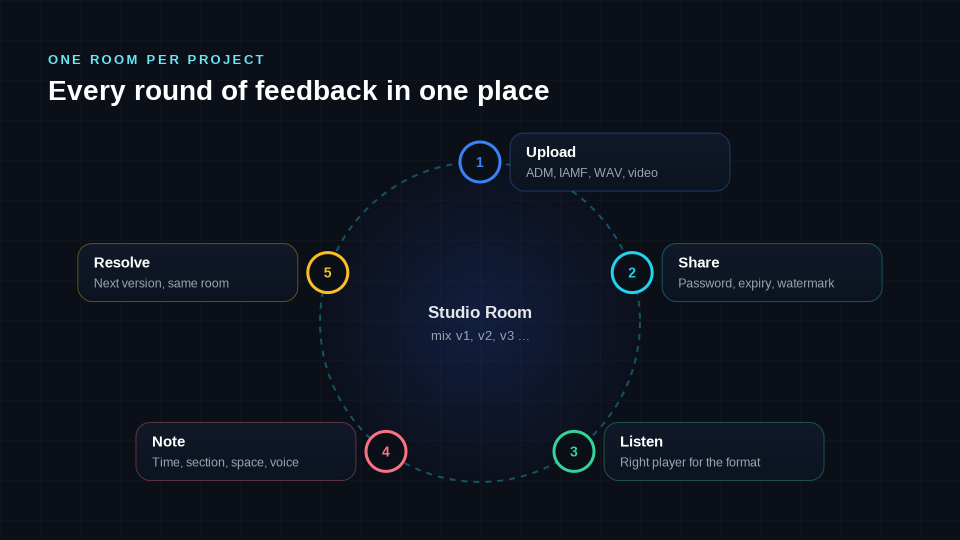
Studio Rooms is a private space to share immersive, spatial, binaural and stereo mixes with clients, artists, labels and collaborators, and to collect precise feedback on them. You upload files into a room at /studio-rooms, send a share link, and every note your guest leaves is pinned to an exact moment, a section, a position in 3D space, or a recorded voice message that is turned into text.
This page explains how rooms, files, versions and share links work, which formats the players understand, how each kind of note is created, and the limits of each plan.
| Property | Value |
|---|---|
| Who it is for | Mixing and mastering engineers, immersive studios, artists, labels, post-production teams |
| What you share | Audio and video files, grouped into rooms, with version history |
| Who can review | Anyone with a share link. Guests do not need an account |
| Kinds of notes | Point in time, section, spatial position, voice note with automatic text |
| Largest file | 2 GB per file |
| Cost | Free during early access. See plans |
Rooms, files and versions
A room is one project: an album, a single, a film reel or a client job. Each room holds files and the conversation around them.
- Upload by dragging files into the room. Uploads go to private storage that only you and your share links can reach.
- Versions. When you upload a new mix of the same song, mark it as a new version of the earlier file. The room keeps the chain in order, so you and your client always know which mix is the latest and what changed.
- Compare. Version comparison plays two versions in sync and lets you switch between them instantly at the same moment, which is the fastest way to hear whether a note was addressed.
- Quality check. The owner can run a quality report on a file: loudness, true peak, clipping, dynamics and phase, measured against the platform you deliver to. It runs privately in the browser.
Players that understand the format
Studio Rooms reads each file before it plays it, and opens the right player instead of a plain audio bar. These are the same players used in Try your current files.
| File | What the room shows |
|---|---|
| ADM BWF (Immersive master) | Beds and objects, played in a virtual 7.1.4 room on headphones |
| Eclipsa Audio / IAMF (.iamf or MP4) | Stereo and binaural A/B, channel layout, ambisonic order |
| Multichannel WAV (5.1, 7.1, 7.1.4, 9.1.6) | Speaker layout and a 3D room preview |
| Ambisonics (AmbiX) | Binaural rendering of the sound field |
| Stereo WAV, FLAC, MP3, AAC | Waveform, spectrum and loudness |
| Video (MP4, MOV, WebM), including 360 video | Picture with the soundtrack, and notes on the timeline |
A format card at the top of each file tells your guest what they are hearing, so nobody reviews a binaural fold-down thinking it is the speaker master.
A next step for every file
Below the format card, your team sees a suggestion for what to do with that file next. It is based on the format:
| File | Suggested next step |
|---|---|
| ADM BWF (Immersive master) | Convert it to Eclipsa Audio for YouTube, free |
| Dolby, DTS or MPEG-H encode | Export the ADM master behind it, then convert it free |
| Surround mix (5.1, 7.1, 7.1.4) | Export it as ADM and take it to YouTube in Eclipsa Audio |
| Eclipsa Audio | Publish it on YouTube, or spatialize more of your catalog |
| Stereo or mono | Make it immersive with the Spatializer for Music |
| Video or 360 video | Give it sound that follows the picture (early access) |
Once a client approves a version, the suggestion turns green and focuses on delivery, for example Approved. Put it on YouTube in Eclipsa Audio, free. Clients on review links never see these suggestions. Press the × to hide one for that file. An approval brings it back with the delivery step.
The waveform and the spectrum
Every audio file opens with a waveform and a spectrum view that you can zoom from the whole song down to individual samples.
- Zoom with the buttons or the mouse wheel. At the highest zoom the waveform switches to a sample-accurate curve read from the original file, so transients and clicks are drawn exactly as they are, not as a blurred overview.
- Point or section. Use the Point and Section switch above the waveform. Point marks one exact moment, shown to the millisecond. Section marks a range: drag across the waveform to select it, from a few milliseconds up to the whole song.
- Spectrum. The spectrum view shows where the energy sits in frequency over time, which helps a guest point at a harsh vocal sibilance or a low-end build-up instead of describing it.
Leaving notes
Notes are how guests and owners talk inside a room. Each note can carry one or more of these anchors.
| Note | How to make it | Best for |
|---|---|---|
| Timed note | Pause the player, or click the waveform in Point mode | "The snare is too loud here" |
| Section note | Drag a range in Section mode | "The whole second chorus feels narrow" |
| Spatial note | Pick a position on the sphere around the listener | "The guitar should sit further back and left" |
| Voice note | Press the microphone and speak | Feedback that is faster to say than to type |
Voice notes
Many clients find it easier to say what they hear than to write it. Press the microphone in the note box, allow microphone access once, and talk. The player pauses while you record so your voice does not mix with the music.
- A voice note can be up to 3 minutes long.
- When you finish, Studio Rooms turns the recording into text and places it in the note, so you can correct a word before sending.
- The original recording is attached to the note. Anyone in the room can play it back, so tone and emphasis are not lost.
- If the text could not be created, the recording is still attached and you can type a short summary.
- Deleting a note also deletes its recording.
Resolving notes
The owner marks a note done once it has been addressed. Done notes stay in the room history under their own tab, so the next round of review starts with a clean list of open notes.
Sharing securely
Share links are how guests enter a room. Each link has its own settings, and you can create as many links as you need, one per person if you like.
- Password. Add a password so a forwarded link is not enough to open the room. Repeated wrong attempts lock the link.
- Expiry. Set a date after which the link stops working. Free rooms allow links of up to 7 days.
- Downloads. Choose whether guests can download the files or only stream them.
- Notes. Choose whether guests can leave notes or only listen.
- Watermark. Show the recipient's name over the player, so a screen recording can be traced back to its link.
- Revoke. Turn a link off at any moment. It stops working straight away.
- Activity. See when each link was opened, which files were played and downloaded, and when notes were added.
- What they can hear. A link can show every file, only the latest version of each track (new uploads appear automatically), or only the files you choose. Guests cannot reach anything outside that set, including notes and approvals on other files.
- WhatsApp and text message. Send any link straight from the share panel. Passwords are never included, so send those separately.
- Saved contacts. Everyone you email a link to is remembered, so next time you can pick them with one tap. Choose Edit to forget a contact.
Give each room a cover image by selecting the square next to its name. The cover appears on your rooms list and at the top of the page your guests see.
Files stream through short-lived signed addresses that expire after a few hours, so a copied file address cannot be reused later.
Notes as markers in your editing software
Click Markers above the player to download every timed note for the file you are listening to, ready for your session:
- MIDI markers work in Pro Tools, Logic, Cubase, Studio One and Ableton. Import the file at 120 BPM so each marker lands at the right time.
- Reaper regions import through the Region/Marker Manager. Notes on a time range become regions, single-point notes become markers.
- Spreadsheet opens in Excel, Numbers or Google Sheets, with time, author, note, direction and status.
Each marker reads "Author: note", plus the direction for notes pinned in 3D. Keep Open notes only on to skip resolved ones, and set Song starts at if the song does not begin at zero in your session.
What changed between versions
In Compare, click Find what changed. Spatial9 listens to both versions in your browser, lines them up even if the new one starts a little earlier or later, and highlights the passages that got louder, quieter, brighter, darker, wider, narrower, or are new. A change in overall level is reported once rather than marking the whole song. Click any highlight to jump there in the newer version.
Open notes from the older version are carried over at the matching time. Notes that sit where the mix changed are marked May be fixed, so you can check those first. Nothing is uploaded: the comparison runs on your device, for files up to 600 MB each.
The AI to-do list
The To-do tab, for the room owner and team, turns every open note on a version and the versions before it into one checklist. Repeated requests are merged into one task, praise without a request is skipped, and tasks are sorted by priority with a time you can click to listen. Voice notes count too, through their transcripts.
If you ran Find what changed for this version first, tasks from older notes that sit in a changed passage are flagged May be fixed in this version. Ticking a task also resolves the notes it came from. Rebuild refreshes the list after new notes and keeps tasks you already ticked. Editors and admins can build and tick lists; listeners can read them. The list is written by AI, so give it a quick read before sending it on.
Delivery check for every store
Under Quality, once a loudness check has run, the Delivery check tells you whether the file is ready for the stores you pick: Apple Music Immersive, Amazon and Tidal Immersive, Spotify, Apple Music stereo, YouTube, Netflix and EBU R128 broadcast. Each store gets a clear verdict (ready, close, or not ready) with the reasons: loudness, true peak, sample rate, bit depth and, for Immersive stores, whether the file is a proper ADM master. Immersive files start with the Immersive stores and YouTube selected; stereo files start with Spotify, Apple Music and YouTube.
Press Download report to save a one-page report you can send to a label or distributor. Guests on a share link can see the check too, so your client knows the master meets the spec before they ask.
Hear it like the client
Under the player, Hear it on plays the mix the way it will sound on everyday devices: Earbuds, Laptop speakers, a Phone speaker (mono, no low end) or in a Car, with a boomy cabin and some road noise. Switch back to Studio to hear the file as mixed. These are quick, honest approximations to catch problems early, not measurements of a particular product. Nothing about the file changes.
Tuned to you: your hearing and your headphones
Every pair of ears is different, and every pair of headphones colours the sound. Press Tune for me next to play, under the waveform. Two tabs open:
- My headphones: search for your model and pick it. The player balances your headphones toward the Harman reference that most studios trust, so what you hear is the mix, not your headphones. A small curve shows exactly what is being corrected, and Turn off switches it back.
- My hearing: add your audiogram from a photo or by typing the values, then choose a Strength from Gentle to Full. Hold to hear without lets you compare instantly.
Your tuning shapes only your own playback. Collaborators and clients in the same room hear their own sound, and exports are never changed. See Tuned to you for the full guide.
The list covers nearly 3,000 headphones, earbuds and in-ear monitors. Each one is measured by a respected lab (oratory1990, Rtings or crinacle) through the open-source AutoEq project, on top of the hand-tuned list the main player uses. If yours isn't there, just keep typing the brand and model and the AI starts looking on its own (or press Find it with AI). It works out a correction from published measurements and marks it AI estimate. If it isn't sure the model exists, it tells you instead of guessing. Once anyone has found a model, everyone gets it instantly next time.
When you are signed in, your choice is saved privately to your account and follows you to every device. Guests on review links can use it too, kept on their own device. It only affects headphone listening and works together with Hear it on and binaural playback. Nothing about the file changes.
Look around on your phone
When an immersive file plays as a full binaural render on a phone or tablet, press Turn to look around. Turning the phone turns your head in the mix, so the front stays where it was and you can hear what sits behind or beside you. Press the target button to face the front again. On iPhone and iPad, Safari asks for permission to use motion first.
Listen together, live
Press Listen together above the player to host a live session. Everyone else who opens the room, team members and guests on a share link, sees Join and then follows you: when you play, pause, jump or switch files, they do too, in sync. You can see how many people are listening, and End closes the session for everyone. Pair it with your usual call app to talk it through. Sessions only reach people who can already open the room, guests only follow files their link covers, and each session closes on its own after three hours.
Your studio's branding
Choose Branding on your rooms page to add your studio name, logo, accent colour and website. Clients then see your studio on review links, client upload links and the embedded player, and invite emails go out under your studio name with your colour. The logo stays private: guests only ever get a short-lived link to it. Remove the branding at any time to go back to the standard Spatial9 look.
Approvals
Guests who are allowed to leave notes can mark the version they are hearing as Approved or Needs changes. Asking for changes requires a short note, so you always know what to fix. The latest decision shows next to each file in the file list, and earlier decisions stay in the history. A new version starts with no decision, and guests viewing an older version see a banner pointing them to the newer one.
Alerts
The bell at the top of your rooms list and of each room shows what happened while you were away: links opened, first listens, downloads, notes, approvals, change requests and locked links. Open the bell inside a room to choose how you hear about it by email:
- Instant. A summary email arrives a couple of minutes after activity settles, with several notes grouped into one message.
- Daily. One digest every morning at 08:00 UTC.
- Off. No emails. The bell still keeps track.
Working with a team
Open Team in any room to bring collaborators in. Each person gets one of three roles:
- Admin. Can do everything an Editor can, plus invite and manage people, change the cover and settings, and delete files and notes. Only the room owner can make someone an Admin or delete the room.
- Editor. Can upload new files and versions, create and manage share links, resolve notes and save quality reports.
- Listener. Can play every file and leave notes, but cannot change anything.
To invite people, enter up to 10 email addresses, choose a role and add an optional note. Each person receives an email with a personal join link that works for 14 days and only for the account with that email address. You can cancel an invite at any time before it is used.
If someone opens a room they are not part of, they can ask to join with a short message. The owner gets an alert and an email, and an Admin or the owner can let them in with a chosen role or decline.
Rooms other people have added you to appear under Shared with you on your rooms page, with your role shown on each card. You can leave a room at any time from the Team panel. Files uploaded by team members count toward the room owner's storage and plan limits.
Collecting files from clients
Choose Collect files in a room to create an upload link. Give it a name, add what you need (for example "24-bit WAV stems, all starting at bar 1"), choose how long it stays open and how many files it can take, then send it to your client.
Your client opens the link, enters their name (email is optional) and drops in audio, video, images or PDFs of up to 2 GB each. They do not need an account. Each file lands in the room with a Sent by tag, you get an alert, and the files count toward the room owner's storage. You can see how many files each link has received and turn a link off at any time. Editors, Admins and the owner can create upload links.
Getting paid for downloads
Choose Payouts on your rooms page, pick the country your bank account is in and finish the short Stripe setup. Once it is done, the room owner sees a Charge to download option when creating a share link. Set a price and currency, and guests can still listen and leave notes for free, but downloads only unlock after they pay by card.
The money goes straight to the room owner's payout account through Stripe. Every sale appears under Payouts, and you get an alert when someone pays. If you refund a payment in Stripe, that guest loses download access. Only the owner can charge for a link, because the money is paid to them.
Embedding a player on your website
Open Share, then press the code button next to any active link. Pick Compact or With tracklist and copy the code into your website, portfolio or link-in-bio page. The player shows the latest version of each file, follows the same rules as the link, and stops working as soon as you revoke the link or it expires. Plays from the embed count toward the link's activity. Password-protected links ask visitors to open the full review instead.
The app and offline listening
Studio Rooms can be installed like an app. Press Install app on your rooms page (on iPhone or iPad, tap Share in Safari and choose Add to Home Screen). It opens in its own window and shows up next to your other apps.
To listen without a connection, open a file and press Save offline. Saved files appear under Offline on your rooms page, grouped by room, and they keep playing on a plane or anywhere without signal. They stay on that device only, and you can remove them one by one or all at once. Guests can save files from a review link only when downloads are allowed or paid for.
Reviewing in VR
On a supported headset, a guest can open the room in VR and hear the immersive mix around them. Spatial notes appear as markers at the positions they describe, so feedback such as "move the choir higher" is shown exactly where it belongs.
Working with AI assistants
Connect ChatGPT, Claude, Gemini or your own agent on the Connect page and run the review loop by asking. "Put the binaural version of today's render in the Neon Nights room", "Send the client a link that expires Friday", "What did they say about v2? Make me a fix list", "Which mixes are approved?" The assistant uses the same rooms, notes, fix lists and approvals you see here, so nothing has to be copied between tools.
- You stay in control. Every key and connected app has a Studio Rooms access switch: Off, View or Manage. It works on every plan.
- Nothing goes out without your yes. Emails, new or revoked links and paid links need your confirmation first, and invites only go to addresses you gave.
- Clear labels. Files and replies an assistant adds show its name, for example "Claude (AI assistant)".
- Same rules. Plan limits, link limits and payout checks are identical to the website.
Your clients can use their own assistant too. On a review link, the Review with your AI assistant button shows them how to connect ChatGPT, Claude, Gemini or another assistant to that one link, with no account. They can then listen, read notes, leave timecoded or spatial notes and approve by asking. Every note and decision needs their yes first, is signed "(via AI assistant)", and follows the link's rules, so revoking the link also cuts off the assistant. See Client reviews.
Developers can find the tools in the MCP server guide and the studio_rooms skill in the A2A guide.
Plans and limits
Studio Rooms is in early access and every feature is open while billing is switched off. The planned limits are:
| Plan | Active rooms | Storage | Share link lifetime |
|---|---|---|---|
| Free | 3 | 5 GB | Up to 7 days |
| Creator | Unlimited | 250 GB | No limit |
| Studio | Unlimited | 1 TB | No limit |
| Pro Facility | Unlimited | 3 TB | No limit |
| Enterprise | Unlimited | Custom | No limit |
See the full comparison on the plans page.
Frequently asked questions
Does my client need an account? No. Guests open the share link in a browser, enter the password if you set one, and can listen and leave notes straight away.
Can my client use ChatGPT or Claude to leave notes? Yes. Clients connect their own assistant to the review link at https://spatial9.ai/mcp/review, with no account. The assistant only sees what the link shows, asks before posting any note or approval, and signs them "(via AI assistant)".
Can a client hear an Immersive mix without Immersive speakers? Yes. ADM masters and multichannel files are rendered to binaural for headphones in the browser, so a client can judge placement and movement anywhere.
Will a guest hear the real file or a compressed preview? The players read the original file you uploaded. Nothing is re-encoded for the review.
Can the player correct for my headphones? Yes. Press Tune for me next to play, open My headphones and pick your model from nearly 3,000 measured headphones, earbuds and in-ear monitors. If yours isn't listed, the AI looks it up automatically and marks the result as an estimate. When you are signed in, your choice follows you to every device.
Can I leave feedback on a single drum hit? Yes. Zoom in until you see the individual samples, switch to Point mode and click the exact spot. The time is stored to the millisecond.
What languages work for voice notes? Voice notes are turned into text in the language you speak. Most widely spoken languages are recognized automatically.
How is this different from sending a WeTransfer or a Dropbox link? A file transfer delivers a file. A room delivers the file, plays it correctly for its format, keeps each version, and gathers feedback attached to exact moments and positions, so nothing gets lost in an email thread.